How to Design a Viral Instagram Post in Canva Step by Step (Free Template Inside)
In the fast-paced world of social media, “going viral” often feels like catching lightning in a bottle. However, if you look closely at the posts that flood your “Explore” page, you will notice they aren’t there by accident. They follow specific design psychology, clarity, and value-driven structures.
Canva has made it possible for anyone—regardless of design background—to create professional-grade visuals. But having the tool isn’t enough; you need a strategy. In this guide, we will break down the exact process of designing an Instagram post built for engagement, shares, and saves.
Why Certain Instagram Posts Go Viral
Before we open Canva, we need to understand the “Viral Anatomy.” On Instagram, the algorithm prioritizes saves and shares over likes. A post goes viral when it provides so much value or emotion that a user feels compelled to keep it for later or send it to a friend.
Common viral formats include:
- Educational Carousels: Deep dives into “How-to” topics.
- Relatable Quotes: Simple text that resonates with a specific community.
- Data Visualizations: Easy-to-digest charts or comparisons.
- The “Aesthetic” Checklist: Clean, organized lists that look beautiful.
Step 1: Research and Conceptualization
Great design starts with a pen and paper, not a mouse.
Find Your “Hook”
The “Hook” is the reason someone stops scrolling. To find yours, look at what is currently trending in your niche. Use tools like “Instagram Explore” or “Pinterest” to see which layouts are grabbing attention.
Define Your Value Proposition
Every viral post answers one question for the viewer: What’s in it for me? * Educational: “I learned a new skill.”
- Inspirational: “I feel motivated.”
- Entertaining: “I laughed and want to share the joy.”
Step 2: Setting Up Your Canva Canvas
To ensure your post looks crisp on all devices, you must use the correct dimensions.
- Select the Right Size: While the square 1080 x 1080 px is standard, Portrait (1080 x 1350 px) is actually better for virality. It takes up more vertical real estate on the screen, giving the user more time to see your content as they scroll.
- Enable Margins: Go to File > View Settings > Show Margins. Keeping your text inside these lines ensures that your content isn’t cut off by the Instagram UI (like the “Like” and “Comment” icons).
Step 3: Mastering the Visual Hierarchy
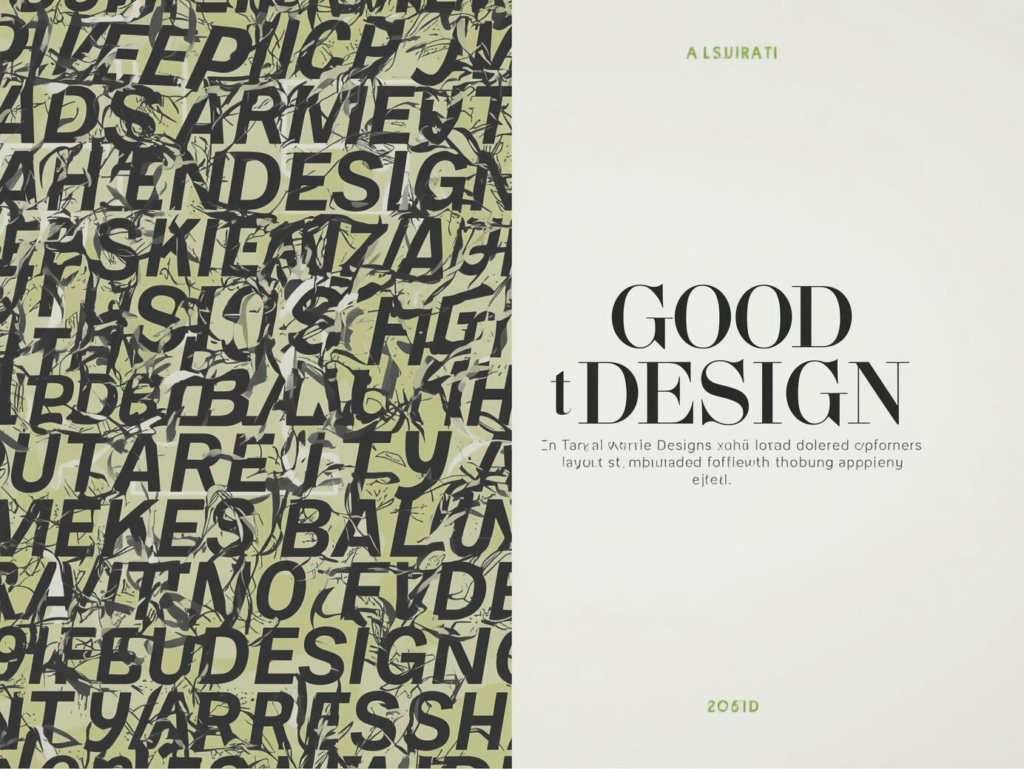
Visual hierarchy is the secret sauce of professional designers. It dictates the order in which a user reads your post.
The 3-Level Text Rule:
- The Headline (Level 1): This should be the largest text on the page. Use a bold, easy-to-read font.
- The Subheadline (Level 2): Use a slightly smaller font size to provide context or a “teaser.”
- The Body/Details (Level 3): This is your smallest text. Use a simple Sans Serif font (like Montserrat or Open Sans) for maximum readability.
Step 4: Step-by-Step Design Process
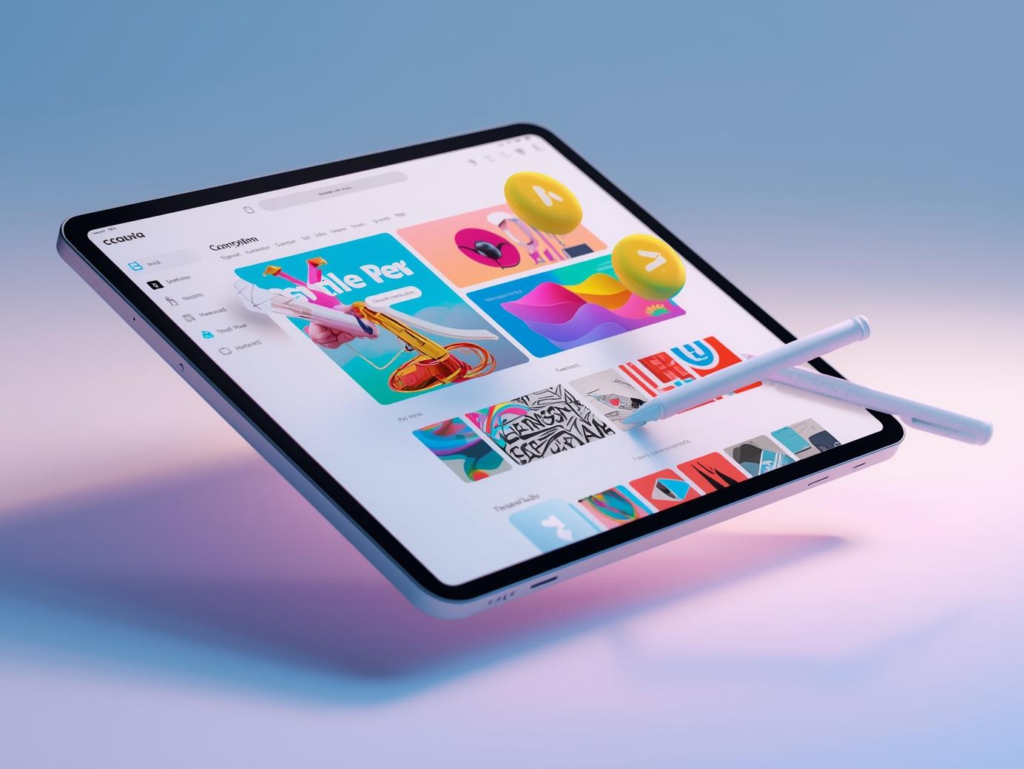
Let’s build a viral-style “Educational Tip” post together.
1. Choose a Background
Avoid busy backgrounds. A solid color or a very subtle gradient works best. If you use a photo, apply a blur (Edit Photo > Blur) or a semi-transparent black overlay to make the text pop.
2. Add Your Headline
Place your headline in the top third of the design. Use “Power Words” like Secret, Essential, Fast, or Mistakes.
Example: “5 Canva Secrets You Didn’t Know.”
3. Incorporate Graphics
Instead of using standard photos, try 3D elements or Custom Illustrations. Go to the “Elements” tab and search for “3D Business” or “Abstract Shapes.” These add a modern, high-end feel that encourages shares.
4. Use the “Rule of Odds”
Humans find images with an odd number of elements more visually appealing. If you are listing icons or tips, try to keep it to 3 or 5 rather than 4 or 6.
Step 5: Designing for the “Save” (The Value Slide)
If you are creating a Carousel, the middle slides are where the “Save” happens.
- Consistency is Key: Keep your colors and fonts exactly the same across all slides. Use the Duplicate Page icon to keep your layout steady.
- Bite-Sized Info: Don’t write paragraphs. Use 1–2 sentences per slide maximum.
Step 6: The Final Call to Action (CTA)
A viral post doesn’t just end; it tells the user what to do next. Your final slide should be a clear invitation.
- “Save this for your next project!”
- “Tag a friend who needs to see this.”
- “Follow @YourName for more design tips.”
Pro Tip: Use an icon of the “Save” button or “Share” airplane to visually prompt the action.
Free Template Framework
Note: Since I am an AI, I cannot give you a direct .canva link, but you can build this “Viral Framework” in 60 seconds:
- Background: #F5F5F5 (Light Grey).
- Headline Font: League Spartan (Bold), Size 80.
- Accent Color: #FF5733 (Vibrant Orange).
- Element: Search “Glossy 3D Shape” in Canva Elements.
- Layout: Headline top-center, Image middle-center, Handle (@YourName) bottom-center.
Conclusion: Consistency Over Perfection
Virality is a numbers game. While following these design steps will drastically improve your quality, the most important factor is consistency. Use Canva’s “Brand Kit” to save your colors and fonts so that every post you create looks like it belongs to a high-end brand.
By focusing on high contrast, readable typography, and providing genuine value, you aren’t just making “posts”—you are creating assets that people want to keep.
FAQ Section
1. Does the color of my post affect engagement?
Yes. Psychology suggests that blue builds trust, red creates urgency, and yellow grabs attention. For virality, high-contrast combinations (like black text on a yellow background or white text on a dark blue background) tend to stop the scroll most effectively.
2. Should I use Canva’s pre-made templates?
Templates are great for inspiration, but using them “as-is” can make your brand look generic. Always change the fonts, colors, and images to match your unique brand identity.
3. How often should I post to go viral?
Quality always beats quantity. It is better to post 3 high-value, well-designed carousels per week than 7 rushed, low-quality images.
4. Can I use copyrighted images from Google in my Canva designs?
No. This is a major violation of AdSense and copyright laws. Stick to Canva’s built-in library of “Free” and “Pro” images, or use sites like Pexels and Unsplash for royalty-free photography.
5. What is the best format to download for Instagram?
Always download as a PNG for single images to keep the quality high. For video or animated posts, use MP4 Video.
Free Template Inside: “5 Productivity Hacks”
To help you get started, we’ve created a free, customizable Canva template for our “5 Quick Productivity Hacks” carousel post. Click here to access your free Canva template!
Feel free to adapt it with your brand colors, fonts, and specific tips. Use it as a springboard for your own viral content!