10 Best Free AI Tools for Canva Designers in 2026 (No Experience Needed)
Introduction: Why AI + Canva = 5x Faster Design in 2026
If you’re a blogger, freelancer, or small business owner, you already know this truth: content creation is time-consuming.
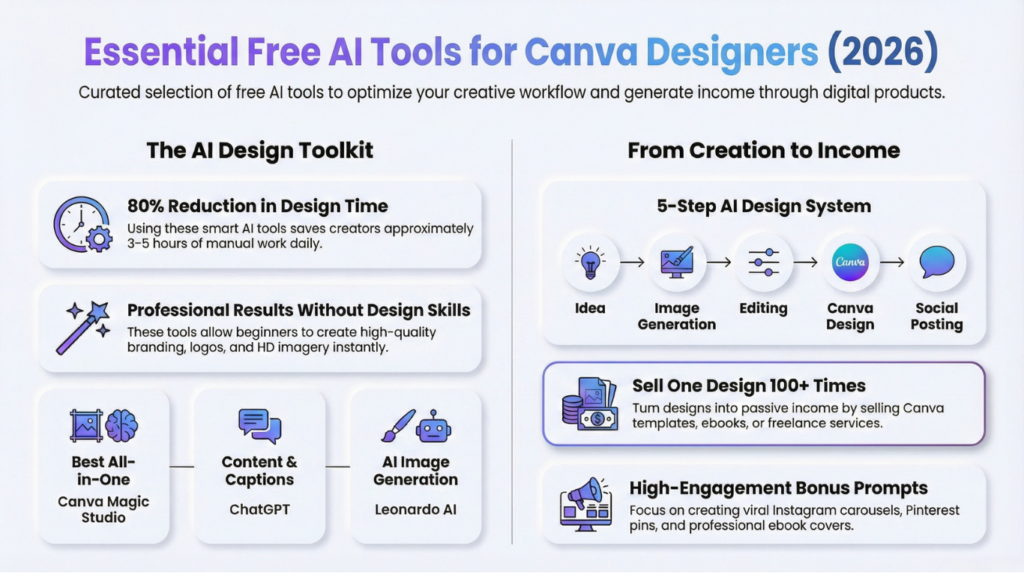
Designing social media posts, writing captions, editing images, creating ebooks, building brand kits—it all adds up. What used to take 3–5 hours per day can now be done in less than an hour… if you use AI smartly.
That’s exactly why tools like Canva combined with AI tools like ChatGPT are dominating in 2026.
Today, even beginners with zero design experience can:
- Create viral Instagram posts
- Design ebooks and sell on Gumroad
- Build Pinterest graphics that drive traffic
- Launch digital products in days
And the best part? Many of these tools are completely free.
In this guide, you’ll discover the 10 best free AI tools for Canva designers, plus step-by-step workflows, real use cases, and how to actually make money using them.
1. Canva Magic Studio (Your All-in-One AI Design Tool)
Best for: Everything (design, writing, editing, video)
Canva Magic Studio is the heart of modern design workflows. It includes:
- Magic Write (AI writing)
- Magic Design (auto-generated templates)
- Background remover
- AI image generator
- Magic Edit (change elements in photos)
Real Use Case:
A beginner can type:
👉 “Instagram carousel about productivity tips”
…and Canva generates a full design in seconds.
How to Use:
- Open Canva
- Click “Magic Design”
- Enter prompt
- Customize output
Pros:
✔ Beginner-friendly
✔ All-in-one tool
✔ Saves massive time
Cons:
✘ Some features limited in free plan
2. ChatGPT (Best for Content + Prompts)
Best for: Captions, hooks, blog content, ideas
ChatGPT is your creative brain.
What You Can Generate:
- Instagram captions
- Blog posts
- Ebook content
- Canva design prompts
Example Prompt:
“Write 5 viral hooks for a Canva tips Instagram post”
Canva Workflow:
- Generate content in ChatGPT
- Copy text
- Paste into Canva design
Pro Tip:
Use hook-based content → improves engagement massively.
3. Remove.bg (Instant Background Remover)
Best for: Product images, thumbnails, branding
Why It Matters:
Clean visuals = professional designs.
How to Use:
- Upload image
- Remove background automatically
- Download PNG
- Upload to Canva
Real Use Case:
Perfect for:
- YouTube thumbnails
- Ecommerce products
- Instagram ads
4. Leonardo AI (AI Image Generator)
Best for: Unique visuals, digital products
Instead of using stock images, you can create original visuals.
Example:
👉 “Minimal aesthetic workspace flat lay for Instagram”
Canva Workflow:
- Generate image
- Download
- Upload to Canva
- Add text
Pro Tip:
Use AI images to stand out from competitors.
5. Clipdrop (Enhance + Clean Images)
Best for: Improving image quality
Features:
- Upscaler
- Cleanup tool
- Background remover
Use Case:
Turn low-quality images into HD professional visuals.
6. Looka AI (Logo & Brand Kit Creator)
Best for: Branding
What You Get:
- Logo
- Color palette
- Brand style
Canva Workflow:
Upload logo → Use in brand kit → Apply to designs
7. Pexels (Free Stock Images Built into Canva)
Best for: Free high-quality images
Why It’s Powerful:
- 100% free
- No copyright issues
- Integrated with Canva
8. D-ID (AI Talking Videos)
Best for: Faceless video content
Use Case:
- Instagram reels
- YouTube shorts
- Educational videos
9. Cleanup.pictures (Remove Objects)
Best for: Fixing messy photos
Use Case:
Remove unwanted elements → cleaner design
10. Upscale.media (Improve Image Quality)
Best for: High-resolution outputs
Step-by-Step: Complete Canva AI Workflow (Beginner Friendly)
Let’s simplify everything into a system you can follow daily:
Step 1: Idea + Content
Use ChatGPT
→ Generate:
- Hooks
- Captions
- Carousel content
Step 2: Image Creation
Use Leonardo AI
→ Create custom visuals
Step 3: Image Editing
Use:
- Remove.bg
- Clipdrop
→ Clean + enhance
Step 4: Design in Canva
Use Canva
→ Apply templates
→ Add text
→ Customize
Step 5: Export + Publish
→ Instagram / Pinterest / Blog
👉 Total time: 10–20 minutes per design
Comparison Table: Best Free AI Tools for Canva Designers
| Tool | Best For | Free Plan | Beginner Friendly | Use Case |
|---|---|---|---|---|
| Canva Magic Studio | All-in-one | ✅ | ⭐⭐⭐⭐⭐ | Everything |
| ChatGPT | Writing | ✅ | ⭐⭐⭐⭐⭐ | Content |
| Remove.bg | Background | ✅ | ⭐⭐⭐⭐ | Thumbnails |
| Leonardo AI | Images | ✅ | ⭐⭐⭐⭐ | Unique visuals |
| Clipdrop | Editing | ✅ | ⭐⭐⭐⭐ | Enhancement |
| Looka | Branding | Limited | ⭐⭐⭐⭐ | Logos |
| Pexels | Photos | ✅ | ⭐⭐⭐⭐⭐ | Stock images |
| D-ID | Video | Limited | ⭐⭐⭐ | Reels |
| Cleanup.pictures | Editing | ✅ | ⭐⭐⭐⭐ | Cleanup |
| Upscale.media | Quality | ✅ | ⭐⭐⭐⭐ | HD images |
Mistakes to Avoid When Using AI with Canva
Many beginners make these mistakes:
❌ 1. Overusing AI
Your content becomes generic.
👉 Fix: Add your personal touch.
❌ 2. Using Too Many Tools
Leads to confusion.
👉 Fix: Start with 2–3 tools only.
❌ 3. Ignoring Branding
Random designs don’t convert.
👉 Fix: Use consistent fonts & colors.
❌ 4. Copy-Paste Content
Hurts growth.
👉 Fix: Edit AI output.
How to Make Money Using These Tools (Very Important 🔥)This is where things get exciting.
Using Canva + AI, you can:
1. Sell Canva Templates
Platforms:
- Gumroad
- Etsy
2. Create Digital Products
Examples:
- Ebooks
- Planners
- Social media kits
3. Freelancing
Offer:
- Instagram design
- Pinterest graphics
4. Content Creation
Grow:
- Instagram page
- Blog
- Pinterest traffic
Real Example:
One simple Canva template can be sold 100+ times.
Bonus: Free Prompt Pack (Lead Magnet Idea)
You can create your own:
Example Prompts:
- “Minimal Instagram carousel for productivity tips”
- “Luxury ebook cover design for passive income guide”
- “Pinterest pin for blogging traffic growth”
👉 Turn this into:
- Gumroad product
- Email freebie
- Lead magnet
❓ Frequently Asked Questions (FAQ)
1. What are the best free AI tools for Canva designers?
The best free AI tools for Canva designers include:
- Canva Magic Studio (all-in-one design)
- ChatGPT (content & prompts)
- Remove.bg (background remover)
- Leonardo AI (image generator)
- Clipdrop (image enhancement)
These tools help you create professional designs faster without needing advanced skills.
2. Can beginners use AI tools with Canva?
Yes, absolutely. Most AI tools are designed for beginners. Platforms like Canva and ChatGPT are user-friendly and require no prior design experience.
You can simply:
- Enter a prompt
- Generate content/design
- Customize it in Canva
3. Is Canva Magic Studio free?
Canva offers many AI features for free under Magic Studio, such as:
- Magic Write
- Background remover
- Basic AI design tools
However, some advanced features are available only in the paid version.
4. How can I use AI tools with Canva step-by-step?
Here’s a simple process:
- Use ChatGPT → Generate ideas & captions
- Use Leonardo AI → Create visuals
- Use Remove.bg → Clean images
- Use Canva → Design final post
This workflow can reduce your design time by up to 80%.
5. Can I make money using Canva and AI tools?
Yes, you can make money in multiple ways:
- Sell Canva templates on Gumroad or Etsy
- Create and sell ebooks
- Offer freelance design services
- Grow social media pages and monetize
Many creators are earning consistent income using just Canva + AI tools.
6. Which AI tool is best for generating images for Canva?
Leonardo AI is one of the best free tools for generating unique images. You can create custom visuals and upload them into Canva for designing social media posts, thumbnails, or digital products.
7. Do I need paid tools to get started?
No, you can start completely free.
A beginner-friendly stack:
- Canva (free version)
- ChatGPT
- Remove.bg
This is enough to start creating and even selling designs.
8. What is the fastest way to design using AI?
The fastest method is:
👉 Use Canva Magic Design
Just enter a prompt like:
“Instagram post for digital marketing tips”
…and Canva generates a ready-to-use design in seconds.
9. Are AI-generated designs original?
Yes, but you should always:
- Customize colors & fonts
- Add your branding
- Edit the content
This ensures your designs stay unique and stand out.
10. Which AI tools should I start with as a beginner?
Start simple:
✔ Canva
✔ ChatGPT
✔ Remove.bg
Once comfortable, add:
- Leonardo AI
- Clipdrop
Conclusion: Why You Must Start Using AI + Canva Today
In 2026, the difference between struggling creators and successful ones is simple:
👉 Speed + Smart Tools
With AI + Canva, you can:
- Design faster
- Create better content
- Scale your income
You no longer need:
❌ Expensive designers
❌ Advanced skills
❌ Hours of work
Instead, you need:
✔ The right tools
✔ A simple workflow
✔ Consistency
Start with just 3 tools today:
- Canva
- ChatGPT
- Remove.bg
Then expand.
👉 If you stay consistent, you can:
- Build a brand
- Sell digital products
- Create a full online income stream
The opportunity is real—and it’s just getting started.