Best Canva Resume Templates for College Students (2026)

The job market in 2026 is faster, louder, and more competitive than ever. For college students and recent graduates, the challenge is double-sided: you need to capture a recruiter’s attention in less than six seconds, but you also need to navigate the automated “gatekeepers” known as Applicant Tracking Systems (ATS).
If you are staring at a blank page, wondering how to fill it when you have “no experience,” you are not alone.
This is where Canva becomes your secret weapon. Gone are the days of struggling with clunky Word formatting that breaks every time you move a margin. Canva allows you to build a personal brand that looks polished, professional, and undeniably you.
In this guide, we will break down the best Canva resume templates for college students, how to customize them for maximum impact, and the crucial “ATS rules” you must follow to ensure your beautiful resume actually gets read.
Why Canva is the Ultimate Tool for Students in 2026
Before we dive into the templates, let’s talk about why you should be using Canva. As a student, your strongest asset is your potential—your energy, your fresh perspective, and your adaptability. A dry, black-and-white text document doesn’t always convey that.
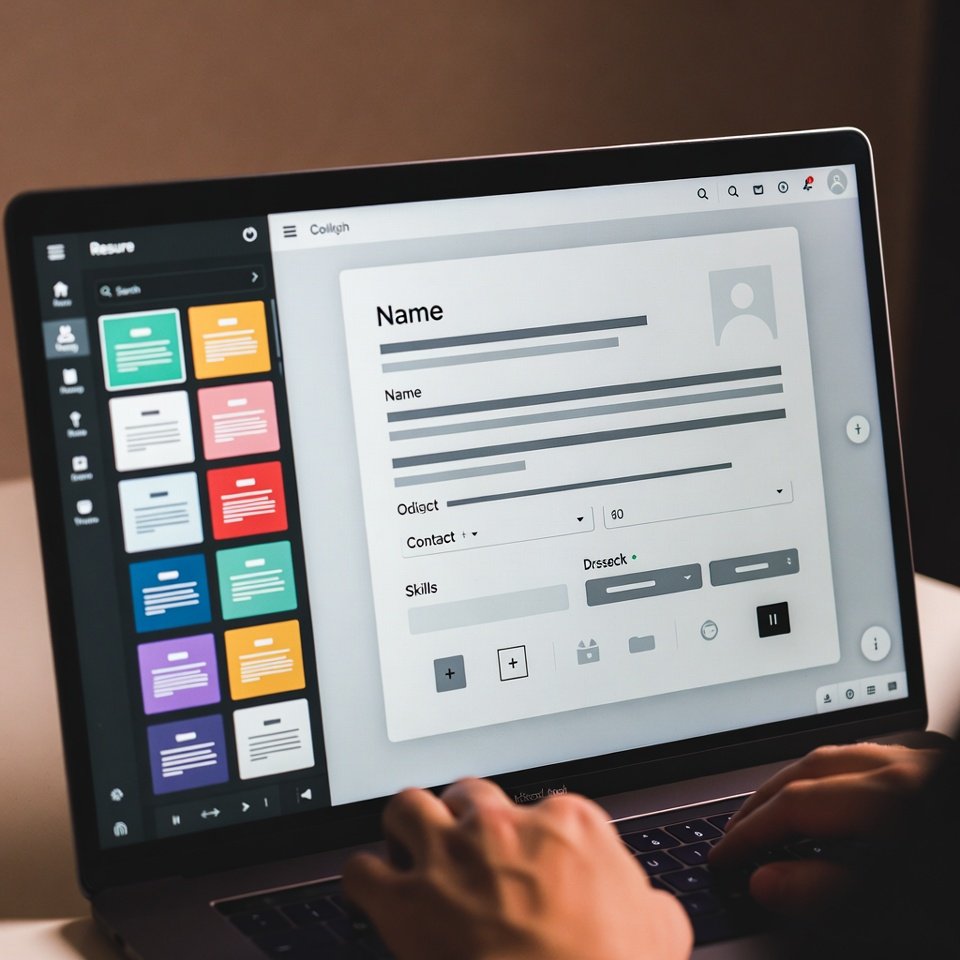
- It’s Free: The “Free” tier of Canva is more than enough to create a world-class resume.
- Visual Hierarchy: Canva templates handle the layout for you, ensuring that your Education and Skills sections pop (which is critical when you lack work history).
- Drag-and-Drop Simplicity: You can easily swap sections. If you have more “Projects” than “Work Experience,” you can just drag that section to the top.
Pro Tip: In 2026, personal branding is key. A Canva resume allows you to subtly incorporate a “signature color” or font that matches your LinkedIn banner or portfolio website.
Top 3 Categories of Canva Resume Templates for Students
Searching “Resume” in Canva yields thousands of results. It’s overwhelming. To save you time, I’ve categorized the best styles specifically for students and grads.
When searching in Canva, use the bolded keywords below to find these specific styles.
1. The “Minimalist” (Best for Corporate & Traditional Roles)
Search Term: Minimalist Resume or Clean Resume
If you are applying to finance, law, administration, or general business roles, “less is more.” You want a template that uses whitespace effectively and relies on strong typography rather than graphics.
- Why it works: It looks mature. It signals to hiring managers that you are serious and organized.
- Key Features to Look For:
- Black and white (or dark blue/navy accents).
- Single-column or very simple two-column layout.
- Standard fonts (like Roboto, Open Sans, or Lora).
2. The “Creative” (Best for Marketing, Design & Social Media)
Search Term: Creative Resume or Modern Resume
If you are applying for a creative internship, a social media manager role, or anything in the arts, your resume is your first portfolio piece. It shows you have an eye for design.
- Why it works: It stands out visually in a stack of boring PDFs.
- Key Features to Look For:
- Bold header colors (teals, corals, or muted pastels).
- Creative use of icons for contact info (email, phone, LinkedIn).
- Space for a headshot (Only include this if it is standard in your country/industry!).
3. The “Academic” (Best for Research, Grad School & STEM)
Search Term: Academic CV or Professional Resume
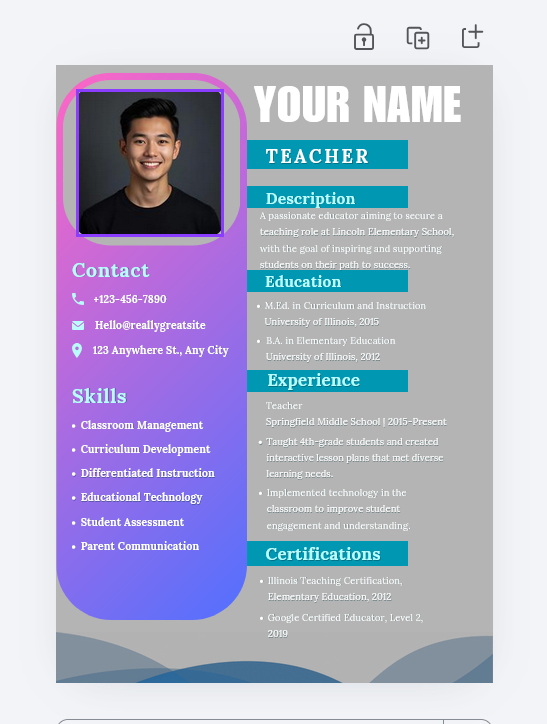
For students in STEM (Science, Technology, Engineering, Math) or those applying to graduate programs, the focus needs to be on details. You need space for lists of skills, certifications, and software proficiency.
- Why it works: It maximizes text space. These templates often have smaller margins and structured bullet points to fit a lot of info on one page.
- Key Features to Look For:
- Dedicated sidebars for “Hard Skills” (e.g., Python, Lab Research, Adobe Suite).
- Clear sections for “Awards” and “Publications.”
How to Write a “No Experience” Resume on Canva
The biggest fear students have is the “Experience” section. What do I put there if I’ve never had a real job?
The secret is simple: Redefine “Experience.”
When you select your Canva template, you are going to rename the sections. Here is the perfect structure for a 2026 student resume:
1. The Header (Your Billboard)
Make your name the biggest thing on the page. Under your name, do not just put “Student.” Use a title that reflects where you are going, such as:
- Marketing Major & Content Creator
- Aspiring Data Analyst
- Junior Graphic Designer
2. Education (Put This First!)
Since you are a student, your education is your current “job.” Place this section at the very top, above experience.
- Include: University Name, Degree, Expected Graduation Date.
- Add Value: List your GPA (if above 3.5), Dean’s List awards, and—most importantly—Relevant Coursework.
- Example: Instead of just “Business Degree,” list “Courses: Consumer Behavior, Digital Marketing Analytics, Business Ethics.”
3. Projects (The “Experience” Substitute)
This is the most underused section by students. Did you build a mock website for a class? Did you organize a charity drive? Did you write a 20-page research paper?
That is work.
- Create a section called “Key Projects.”
- Treat your class projects like jobs. Use bullet points to describe what you did.
- Bad: “Did a project on marketing.”
- Good: “Developed a comprehensive marketing strategy for a mock startup; conducted market research on 50+ participants and designed social media assets.”
4. Skills (Keywords are King)
In 2026, skills matter as much as degrees.
- Soft Skills: Leadership, Public Speaking, Time Management.
- Hard Skills: Canva, Excel, Python, Google Analytics, SEO writing.
The “ATS Trap” – Read This Before You Download!
This is the most important section of this article.
What is an ATS?
Applicant Tracking Systems are software robots that big companies use to scan resumes before a human ever sees them. They look for keywords.
The Problem with Canva:
Some beautiful Canva templates use elements that robots cannot read.
- Icons: An ATS might not understand that a “phone icon” means a phone number follows.
- Graphics: Text inside a graphic or image is often invisible to the software.
- Columns: Complex two-column layouts can get scrambled (e.g., the robot reads straight across the page, mixing your skills with your work history).
How to Beat the ATS with Canva
You don’t have to stop using Canva, but you have to be smart.
- Stick to Simplicity: Avoid templates with heavy graphics, charts, or “skill bars” (those graphs that show 80% proficiency in Spanish). Robots hate skill bars.
- Use Standard Headings: Don’t get cute. Use “Work Experience,” not “My Journey So Far.”
- The “Two-Resume” Strategy:
- Resume A (The Robot Version): A very simple, clean Canva template (or even a Word doc) for uploading to online portals (Indeed, LinkedIn Easy Apply, Company Websites).
- Resume B (The Human Version): A stunning, creative Canva template for emailing directly to recruiters, bringing to job fairs, or handing out at interviews.
Step-by-Step: Customizing Your Template
Ready to build? Follow this workflow to create a resume that gets you hired.
Step 1: Choose Your Template
Log in to Canva and search for “Student Resume.” Filter by “Free” if you are on a budget. Pick one that feels easy to read.
Step 2: The Content Dump
Don’t worry about formatting yet. Click into the text boxes and paste your info.
- Tip: Use ChatGPT or Gemini to help you write punchy bullet points. Ask it: “Rewrite this bullet point to be more action-oriented and professional: ‘I helped customers at the store.'”
Step 3: Formatting & Alignment
This is where Canva shines.
- Group items: Select your job title, date, and company name, and use the “Group” button. This keeps them together if you move them.
- Tidy Up: Use the “Position” -> “Tidy Up” tool to ensure your bullet points are perfectly spaced.
Step 4: Check for Typos
Canva has a spell check, but it’s not perfect. Read it out loud. Then, have a friend read it. A typo in “Attention to Detail” is an irony you cannot afford.
Step 5: Download Correctly
Always download your resume as a PDF Standard. Do not download it as a JPG or PNG image—ATS software cannot read text on an image file!
5 Common Mistakes to Avoid
I have reviewed hundreds of student resumes. These are the errors that get applications tossed in the trash.
- Including a Photo (in the US/UK): Unless you are an actor or model, avoid headshots for US or UK jobs. It can create bias issues, and some HR departments auto-reject them to avoid liability.
- Using “I” Statements: Resumes should be written in implied first person.
- Wrong: “I managed a team of three.”
- Right: “Managed a team of three…”
- Unprofessional Email Addresses:
SkaterBoy99@gmail.comis not going to cut it. Create a new email:Firstname.Lastname@gmail.com. - Over-designing: Too many colors, three different fonts, and messy alignment look chaotic. Stick to two fonts max (one for headers, one for body text) and one accent color.
- Keyword Stuffing: Don’t just paste keywords in white text at the bottom (old trick, doesn’t work). Weave them into your bullet points naturally.
Bonus: 10 Power Verbs to Supercharge Your Student Resume
Stop using weak words like “helped,” “made,” or “worked on.” To beat the ATS and impress recruiters, swap them for these dynamic action verbs:
- Orchestrated: Use this instead of “led” or “organized.”
- Example: “Orchestrated a fundraising event that raised $2,000 for local charities.”
- Collaborated: Use this instead of “worked with.”
- Example: “Collaborated with a team of five to develop a marketing strategy for a mock startup.”
- Spearheaded: Use this instead of “started” or “led.”
- Example: “Spearheaded a new recycling initiative for the student dormitory.”
- Developed: Use this instead of “made” or “created.”
- Example: “Developed a Python script to automate data entry for a biology lab project.”
- Analyzed: Use this instead of “looked at” or “read.”
- Example: “Analyzed consumer trend data to identify key growth areas for the final capstone project.”
- Revitalized: Use this instead of “improved” or “fixed.”
- Example: “Revitalized the university chess club by increasing membership by 40% in one semester.”
- Facilitated: Use this instead of “helped” or “ran.”
- Example: “Facilitated weekly study groups for 15 freshman students in Introduction to Economics.”
- Presented: Use this instead of “talked about.”
- Example: “Presented research findings on renewable energy to a panel of faculty members.”
- Streamlined: Use this instead of “made faster” or “organized.”
- Example: “Streamlined the club’s budget tracking process using advanced Excel formulas.”
- Authored: Use this instead of “wrote.”
- Example: “Authored a 20-page research paper on the impact of AI in modern education.”
Conclusion: Your Career Starts with a Click
Creating a resume can feel intimidating, but it is also the first step toward your financial independence and career success.
Remember, a resume is a living document. It doesn’t have to be perfect forever; it just has to be perfect for right now. In 2026, you have tools like Canva that level the playing field, allowing you to present yourself as the polished professional you are becoming.
Don’t let “no experience” hold you back. Your coursework, your passion projects, and your soft skills are valuable currency. Package them up in a sharp template, hit download, and start applying. The job you want is out there waiting for you.
Ready to start?
[Click here to browse Canva’s Free Resume Templates]
Frequently Asked Questions (FAQs)
1. Are Canva resume templates ATS-friendly?
Yes, but you have to be careful. While Canva resumes look great, some templates use heavy graphics or icons that Applicant Tracking Systems (ATS) cannot read. To ensure your resume is ATS-friendly, choose a simple, clean layout, avoid using images for text headers, and always download your file as a “PDF Standard” rather than an image file (JPG/PNG).
2. Is Canva free for college students?
Yes! Canva offers a robust “Free” plan that includes thousands of resume templates, fonts, and graphics. There is also Canva for Education, which is free for K-12 students and teachers. However, university students usually rely on the standard Free plan, which is more than enough to create a professional-looking resume without paying a dime.
3. What is the best file format to download my Canva resume?
You should always download your resume as a PDF Standard or PDF Print. These formats keep your text selectable, meaning hiring managers (and robots) can copy and paste your email or phone number. Never send a resume as a JPG or PNG, as these are viewed as “pictures” and cannot be scanned by most recruiting software.
4. Can I edit my Canva resume on my phone?
Yes, you can use the Canva mobile app to make quick edits to your resume on the go. However, for the initial design and detailed formatting—like aligning bullet points or adjusting margins—it is highly recommended to use a laptop or desktop computer. The larger screen gives you better control over the fine details that matter to recruiters.
5. Should I include a photo on my Canva resume?
It depends on your location. If you are applying for jobs in the USA, UK, or Canada, standard advice is to avoid including a photo to prevent potential bias and adhere to anti-discrimination laws. However, in many European, Asian, and Latin American countries, a professional headshot is expected. Always research the specific norms of the country where you are applying.