Design used to be a skill reserved for those who could master complex software like Adobe Photoshop or Illustrator. Today, Canva has democratized design, allowing millions of content creators, small business owners, and students to create stunning visuals with just a few clicks.1 As we navigate the digital landscape of 2026, the tool has grown even more powerful with integrated AI features and advanced video editing capabilities.
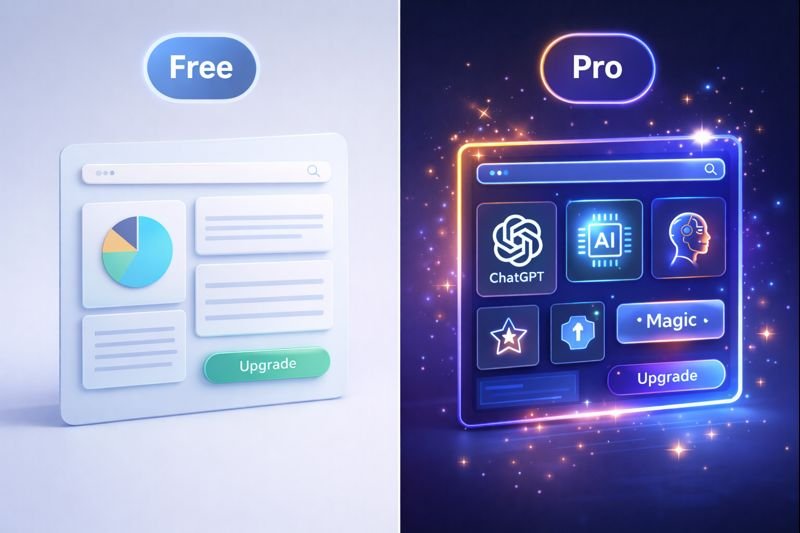
However, the most common question remains: Is the free version enough, or should you pay for Canva Pro? For many, the monthly subscription is a significant consideration. This guide will break down the differences, evaluate the new 2026 features, and help you decide which version aligns with your creative goals.
Disclaimer: This article is for informational purposes. Pricing and feature availability mentioned are based on current 2026 market trends. Always check Canva’s official pricing page for the most up-to-date details.
1. The Power of Canva Free: What Can You Actually Do?
Many creators are surprised by how much they can achieve without spending a dime. Canva’s free tier is arguably one of the most generous “freemium” offerings in the software world.2
A Massive Template Library
Even on the free plan, you have access to over 250,000 free templates.3 These aren’t just basic layouts; they cover everything from Instagram Reels and TikTok templates to professional-looking resumes and business presentations.
Collaboration Tools
One of Canva’s best features is its collaborative nature. Even on the free plan, you can:
Share a link with a teammate to view or edit your design.
Leave comments on specific elements.
Work together in real-time.
Storage and Exporting
The free version provides 5GB of cloud storage. For a casual creator making a few social media posts a week, this is usually plenty. You can export your designs in standard formats like JPG, PNG, and PDF.5
2. Canva Pro: The Features That Change the Game
If the free version is a solid foundation, Canva Pro is the high-performance engine. It is designed specifically for people who are creating content regularly and need to save time.
The Magic Switch (Formerly Resize)
In 2026, the “Magic Switch” is the crown jewel of Canva Pro. Imagine you’ve spent an hour creating a beautiful YouTube Thumbnail. With the Magic Switch, you can instantly turn that design into:
An Instagram Story
A LinkedIn banner
A physical flyer
A blog header7
The AI automatically adjusts the elements to fit the new dimensions, saving you hours of manual tweaking.
Background Remover (Image and Video)
Removing backgrounds used to require meticulous “masking” in professional software. In Canva Pro, it is a one-click process. In 2026, this feature has been perfected to handle even complex details like frizzy hair or transparent glass. This is essential for creating professional product photos or “talking head” video overlays.
The Full Brand Kit
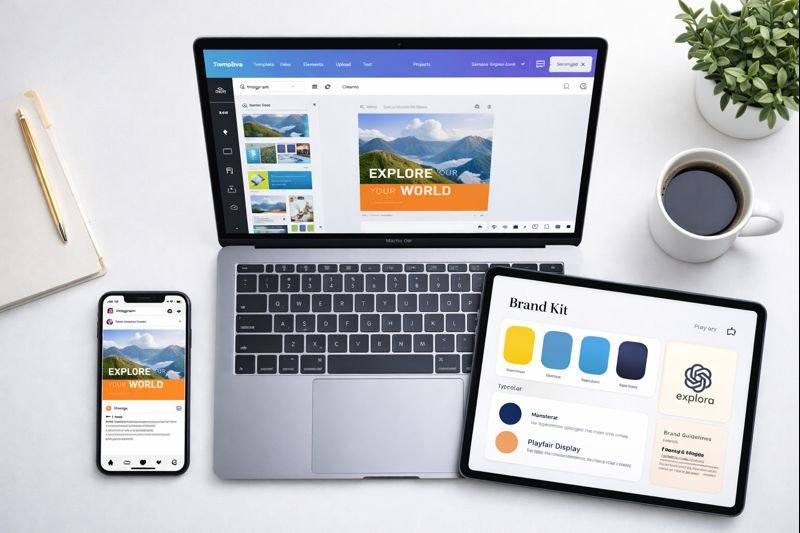
Consistency is the key to successful branding. The Brand Kit allows you to save your specific brand colors, fonts, and logos in one place.8 Instead of hunting for your hex codes every time you start a new project, they are right there in the sidebar, ready to be applied.
By 2026, Canva has fully integrated its Magic Studio, a suite of AI-powered tools. While some basic AI features are available to free users, the Pro version offers significantly higher usage limits and more advanced tools.9
Magic Media (Text-to-Image and Video)
Pro users have higher credits to generate unique images and videos using AI. If you can’t find the right stock photo, you can simply type “A futuristic cat drinking coffee on Mars,” and Canva will generate it for you.
Magic Edit and Magic Expand
Magic Edit: Allows you to “paint” over an object in your photo and replace it with something else (e.g., changing a red t-shirt to a blue one).10
Magic Expand: If your photo is too narrow for your layout, the AI can “imagine” what the rest of the background looks like and extend the image for you.11
4. Content Library Comparison: Free vs. Pro
One of the biggest frustrations for free users is seeing a beautiful image or icon only to realize it has a “crown” icon on it, meaning it’s only for Pro users.
Feature
Canva Free
Canva Pro
Stock Photos & Graphics
~1 Million
100+ Million
Premium Fonts
Limited Selection
3,000+ (plus upload your own)
Video Assets
Basic
High-quality 4K footage
Cloud Storage
5GB
1TB (1,000GB)
Folders
Basic organization
Unlimited folders for projects
For professional content creators, the 100 million+ library of premium assets is often the main reason to upgrade.12 It eliminates the need for a separate subscription to sites like Shutterstock or Adobe Stock.
5. Who Should Stick with the Free Version?
Not everyone needs to pay for Canva Pro. You should stay on the free plan if:
You are a student: Most academic projects don’t require high-level branding or massive asset libraries.
You are a casual user: If you only make one “Happy Birthday” post a month for a friend, the free version is more than enough.
You are on a tight budget: You can find free stock photos on sites like Pexels and upload them to Canva Free.
You don’t mind the extra steps: If you are okay with manually resizing your designs and removing backgrounds using free external websites, you can save the subscription cost.
6. Who Should Definitely Upgrade to Pro?
Canva Pro is an investment in your productivity.13 You should upgrade if:
You are a Content Creator/Influencer: Creating daily content across multiple platforms (Instagram, TikTok, Pinterest) makes the “Magic Switch” and “Background Remover” indispensable.
You are a Small Business Owner: The Brand Kit ensures that everything you put out looks professional and cohesive.14
You manage multiple clients: Pro allows you to set up different Brand Kits for different clients, keeping everything organized.15
You do a lot of Video Editing: The Pro video features, including premium music tracks and advanced transitions, make it a viable alternative to basic video editors.
7. Pricing and Value for Money in 2026
In 2026, Canva Pro typically costs around $12.99 to $15.00 per month (depending on your region and whether you pay annually).16
When you consider that a Pro subscription replaces:
A stock photo subscription ($10-$30/mo)
A background removal tool ($5/mo)17
Basic video editing software ($10/mo)
An AI image generator subscription ($10/mo)
The value proposition is quite strong. For the price of a couple of coffees, you get a comprehensive creative suite.
Frequently Asked Questions (FAQ)
1. Is Canva Pro really better for SEO?
Indirectly, yes. Canva Pro allows you to export images in SVG format (great for web scalability) and provides better control over image compression, which helps with site speed—a key SEO factor.18
2. Can I use Canva Pro for commercial purposes?
Yes. Designs created in Canva Pro can be used for your business, marketing, and social media. However, you cannot sell the standalone “elements” (like a single stock photo) as your own.
3. Can I cancel Canva Pro anytime?
Yes, Canva offers monthly and annual plans.19 If you cancel, you will keep your Pro access until the end of your current billing period.20
4. Does Canva Pro include AI credits?
Yes. Pro users get a significantly higher monthly allowance for AI-powered tools like “Magic Media” and “Magic Expand” compared to free users.21
5. Can I share a Canva Pro account with my team?
Canva has a specific “Canva for Teams” plan.22 If you have more than two people working together, the Teams plan is often more cost-effective than individual Pro accounts.
6. Is there a student discount for Canva Pro?
Canva provides Canva for Education for free to K-12 teachers and their students.23 For university students, keep an eye out for seasonal “Back to School” promotions.
Conclusion: Making Your Choice
Choosing between Canva Free and Pro in 2026 comes down to one thing: The value of your time.
If you are a hobbyist, the Free version is a masterpiece of software that will serve you well. However, if you are a content creator looking to grow your brand, the efficiency of Canva Pro pays for itself within the first few days of use. The ability to batch-create content and the access to millions of premium assets remove the “friction” from the creative process.24
The takeaway: Start with the 30-day free trial of Pro.25 Use the “Magic” tools and the Brand Kit. If you find yourself saving hours of work, the upgrade is a “no-brainer.”
Are you struggling with a specific design task in Canva?
Leave a comment below, and I’ll help you find the best workflow—whether you’re on the Free or Pro plan!
Would you like me to create a step-by-step guide on how to set up your first Brand Kit in Canva Pro?