How to Create Professional Logos with AI in Canva (Step-by-Step 2026 Guide)
In 2026, a strong logo remains the cornerstone of any brand identity. For bloggers, small business owners, freelancers, and startups, it conveys professionalism, builds instant recognition, and fosters trust with your audience. A memorable logo appears on websites, social media, packaging, business cards, and merchandise. Poorly designed ones can make even the best products look amateurish.
The good news? You no longer need expensive designers or complex software. Canva’s Magic Studio, powered by advanced AI tools like Magic Design, Dream Lab, Magic Media, and the dedicated AI Logo Generator, lets anyone create polished, professional logos in minutes. This guide walks you through the full process, with prompt examples, refinement tips, export strategies, and expert advice for 2026.
Why Good Logos Matter for Bloggers & Small Businesses
Your logo is often the first visual touchpoint. It encapsulates your brand’s personality—whether minimalist and modern for a tech blog, vibrant and playful for a lifestyle brand, or elegant and sophisticated for a premium service.
For small businesses and bloggers operating on tight budgets, hiring a designer can cost $300–$2000+. AI in Canva slashes this to near zero while delivering results that rival professional work. Plus, you retain full control and can iterate endlessly. A versatile logo scales from favicons to billboards without losing quality, supports your Brand Kit for consistent marketing, and helps with trademark potential when made unique.
Step 1: Brainstorming with AI (Prompt Examples)
Effective logo creation starts with clear ideas. Use Canva’s AI assistant or external tools like ChatGPT to brainstorm.
Key elements to define:
- Brand name and tagline
- Industry/niche
- Target audience
- Core values (e.g., eco-friendly, innovative, luxurious)
- Preferred style (minimalist, vintage, geometric, illustrative)
- Color palette (2–3 colors max for versatility)
- Symbol or icon (if any)
Powerful prompt examples for Canva’s AI Logo Generator or Magic Design:
- Tech Startup: “Create a sleek modern logo for ‘NovaTech’ AI solutions company, minimalist geometric shapes, deep blue and electric cyan colors, clean sans-serif font, negative space innovation symbol.”
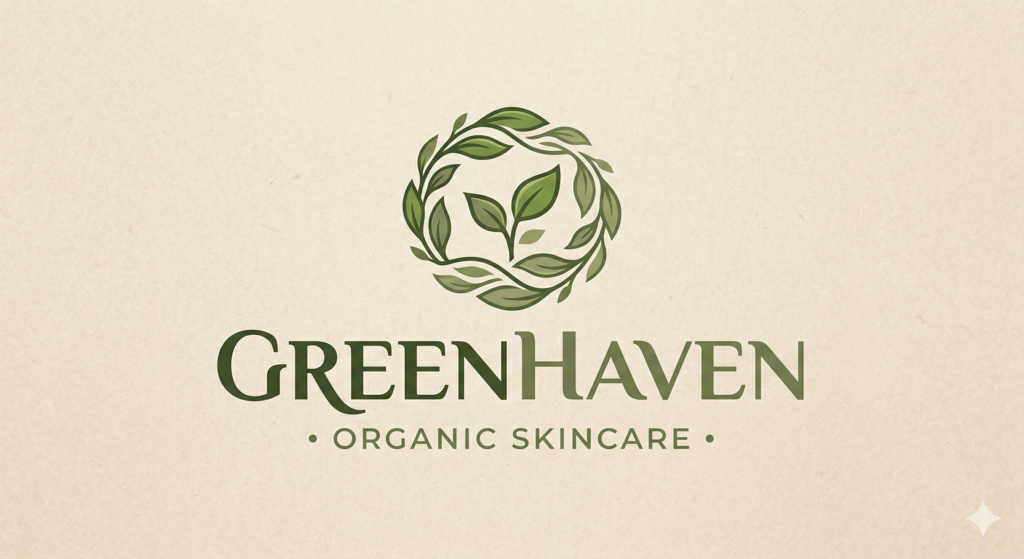
- Eco-Friendly Brand: “Professional logo for ‘GreenHaven’ organic skincare, earthy green and soft beige tones, leaf motifs integrated with elegant typography, natural and calming vibe.”
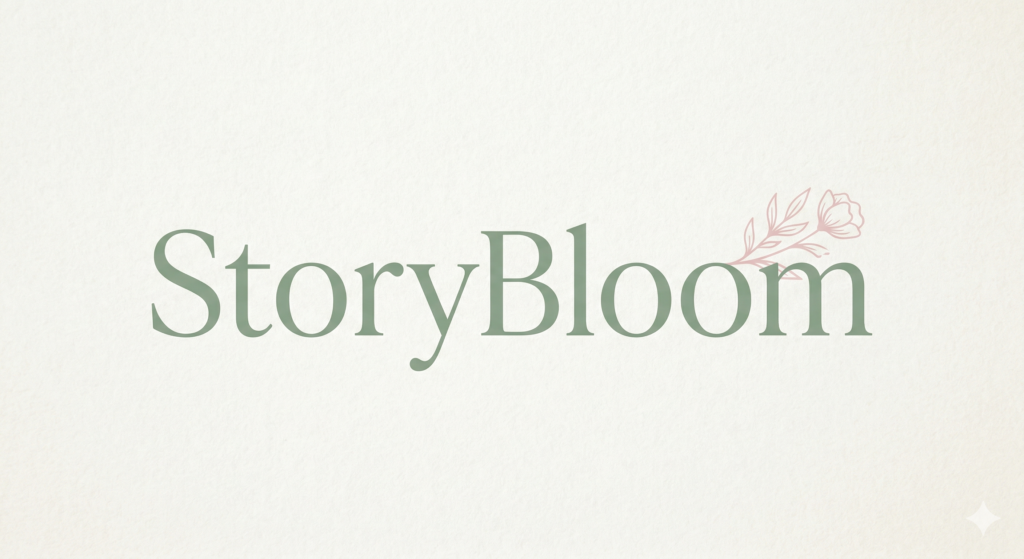
- Blog/Freelance: “Minimalist wordmark logo for ‘StoryBloom’ lifestyle blog, elegant serif font with subtle floral accent, pastel pink and sage green, feminine yet professional.”
- Food/Cafe: “Playful yet premium logo for ‘Purrfect Sip’ cat cafe, cute cat silhouette with coffee cup, warm neutrals and teal accents, rounded friendly fonts.”
Pro Tip: Start broad (“modern clean logo”), then refine with specifics. Include “vector style, scalable, transparent background compatible” for better results. Generate 4–8 variations and pick the strongest base.
Step 2: Using Canva Magic Studio + Free AI Image Tools
Log into Canva (free account works for basics; Pro unlocks unlimited AI credits and Brand Kit).
Method 1: Direct AI Logo Generator
- Go to Canva homepage and search for “AI Logo Generator” or navigate via Canva AI.
- Enter your detailed prompt.
- Select style options (e.g., minimalist, 3D, illustrative).
- Hit Generate. Canva’s Dream Lab or Magic Media powers this, producing multiple options instantly.
Method 2: Magic Design Workflow
- Create a new design (custom size: 500x500px or 2000x2000px for logos).
- Use the Magic Design panel or Canva AI prompt box: “Design a logo for [brand]…”
- Upload reference images or apply your Brand Kit for on-brand colors/fonts automatically.
Method 3: Magic Media for Custom Icons
- Generate icons or illustrations separately (“simple line art fox icon, minimalist, black”) then combine in your canvas.
Canva’s 2026 updates make these tools conversational. You can say, “Make the icon smaller and change the font to sans-serif,” and the AI adjusts intelligently.
Step 3: Refining Colors, Fonts, and Layouts
AI gives a strong starting point—refinement makes it professional.
- Colors: Use Canva’s color picker and Brand Kit. Ensure high contrast for accessibility and versatility (test in black & white). Limit to 2–3 colors.
- Fonts: Pair one display font for the mark with a clean sans-serif. Canva suggests combinations; avoid more than two fonts.
- Layout: Balance negative space. Use alignment tools and rulers. For icons + text, experiment with stacked, side-by-side, or icon-only versions.
- Advanced Edits: Magic Edit/Grab for selective changes, Magic Morph for stylized text effects, or layers for depth. Convert raster elements to vectors where possible for scalability.
Iterate: Generate variations, A/B test with your audience on social media, and refine. Aim for simplicity—great logos are recognizable at small sizes.
Step 4: Exporting Variations (Transparent Background, Different Sizes)
Professional logos need flexibility:
- Download as PNG with transparent background (essential for overlays).
- SVG for vector scalability (ideal for print/web).
- Multiple sizes: square, horizontal, monochrome, favicon (32x32px), high-res (for large prints).
- Use Magic Resize to adapt instantly across formats.
Export versions with/without taglines. Store in Brand Kit for team access.
Before/After Examples
Before (Generic AI Output): A basic text logo with cluttered elements and poor spacing.
After (Refined): Clean icon integration, balanced proportions, brand-aligned colors, and versatile exports. Many users transform generic generations into standout marks by tweaking 10–20% manually.
Real-world transformations show dramatic improvements in polish and uniqueness after refinement.
Bonus: How to Sell These Logos or Use Them in Your Own Branding
- Personal Branding: Apply your logo consistently across your site (via Brand Kit), social profiles, email signatures, and merch.
- Freelance Service: Offer “AI-Powered Logo Packages” on Fiverr/Upwork. Charge $50–$300 for 5–10 variations + refinements. Many creators bundle with full brand kits.
- Digital Products: Sell customizable logo templates on Etsy (ensure originality).
- Upsell: Use the same AI skills for business cards, social templates, and packaging—turning one logo project into recurring revenue.
Common Pitfalls (Copyright, Overused Styles)
- Copyright & Originality: AI pulls from vast datasets—avoid exact copies of famous logos. Customize heavily and check trademarks via USPTO or similar databases. Canva elements may have usage limits for commercial projects.
- Generic Looks: Overused prompts create similar outputs. Add unique descriptors (e.g., “in the style of Bauhaus meets cyberpunk”).
- Scalability Issues: Test at tiny sizes; fix blurriness by preferring vector-friendly designs.
- Too Many Elements: Simplicity wins. Cluttered logos fail in small applications.
- Color/Print Problems: Always test CMYK for print and ensure accessibility.
- Over-Reliance on AI: Use it as a starting point, not the final product. Manual tweaks add soul.
Frequently Asked Questions (FAQ)
1. Is Canva’s AI Logo Generator completely free?
Canva offers a generous free tier that includes basic AI logo generation through Magic Studio. However, for unlimited generations, higher-quality outputs, advanced features like Magic Edit, Magic Morph, and priority access to newer models in 2026, you’ll need Canva Pro (or the Teams plan). Most users find the free version sufficient for 5–10 solid logo concepts per day.
2. Do I need Canva Pro to create professional logos?
Not necessarily for beginners, but Pro is highly recommended. It unlocks Brand Kit (to save your colors and fonts), transparent background exports, SVG downloads, Magic Resize for multiple formats, and removes watermarks on premium elements. If you plan to create logos regularly or for clients, Pro pays for itself quickly.
3. Can I use AI-generated logos from Canva for commercial purposes?
Yes, Canva allows commercial use of designs created in the platform, including AI-generated ones. However, you must heavily customize them to avoid similarity with existing trademarks. Always run a trademark search on USPTO (or your country’s database) before finalizing. Canva is not liable for any IP issues — that responsibility lies with you.
4. How do I make my AI logo truly unique and not generic?
Avoid basic prompts. Combine unexpected elements: “minimalist geometric mountain merged with a coffee bean in the style of Swiss design, terracotta and navy palette.” Use Magic Edit to manually tweak shapes, colors, and layouts. Add hand-drawn touches or combine multiple AI elements. The more specific and personal your prompt, the more original the result.
5. What should I do if I don’t like any of the generated logo designs?
Regenerate with a more detailed prompt or try the “Design for me” conversational AI feature. Upload reference images of styles you like. Switch between different style presets (minimalist, vintage, bold, etc.). Many designers generate 20–30 variations before picking one to refine. You can also start with Magic Media to create custom icons first, then build the logo around them.
6. Which file formats should I export my logo in?
- PNG — Best for web and transparent background use.
- SVG — Ideal for scalability (websites, large prints).
- PDF — For print professionals.
- JPG — Only for social media previews.
Always export multiple versions: full color, black, white, icon-only, and horizontal/vertical layouts.
7. How long does it take to create a professional logo in Canva with AI?
Beginners usually take 30–60 minutes for the first draft. With practice, you can go from idea to polished, export-ready logo in under 20 minutes. Refinement and variations add extra time.
8. Can I sell logos I create with Canva AI to clients?
Yes. Many freelancers and agencies now offer “AI-Assisted Logo Design” packages priced $75–$350. Clearly communicate that the work is AI-assisted and customized by you. Deliver full source files and usage rights. Building a portfolio of before/after examples helps win clients.
9. Is Canva AI better than Midjourney or Adobe Firefly for logos?
Canva excels at quick, ready-to-use, editable vector-style logos with easy text integration. Midjourney and Firefly produce more artistic, high-detail images but require more post-processing and don’t offer the same seamless editing and Brand Kit workflow. For most small businesses and bloggers, Canva is faster and more practical in 2026.
10. How do I protect my new logo?
Once finalized, file for trademark protection in your country. Use it consistently across all platforms to establish “common law” rights. Consider registering the copyright for the design as well.
Final Thoughts
In 2026, Canva’s AI has democratized professional logo design. With Magic Studio, anyone can go from idea to polished brand asset in under an hour. Start simple, iterate relentlessly, and treat your logo as a living part of your brand that evolves with you.
Ready to create? Open Canva, type your first prompt, and watch your vision come to life. Your professional logo—and stronger brand—is just a few clicks away.