Top AI Tools That Save 10+ Hours Every Week
Have you ever reached the end of the day and wondered where all your time went?
You started with a clear plan. Maybe you wanted to write a blog post, reply to emails, create a few social media posts, or finally finish that presentation you’ve been putting off. But before you knew it, hours had disappeared into small, repetitive tasks.
I’ve been there more times than I’d like to admit.
There was a time when writing a single blog article meant opening 15 browser tabs, taking notes in one app, editing images in another, checking grammar somewhere else, and then spending another hour creating social media graphics to promote it. By the end of the day, I was exhausted—and I still had a long list of unfinished work.
Things started to change when I stopped trying to do everything manually.
Instead of treating AI as a shortcut, I began using it as a smart assistant. It didn’t replace my work or creativity. It simply handled the repetitive parts that were slowing me down.
That’s the real benefit of AI.
It’s not about working less. It’s about spending less time on routine tasks so you can focus on thinking, creating, and growing your business.
In this guide, I’ll share the AI tools that can realistically save you 10 or more hours every week. Whether you’re a blogger, freelancer, student, marketer, or small business owner, these tools can help you simplify your workflow without feeling overwhelmed.
Let’s dive in.
Why Most People Waste So Much Time
When people think about productivity, they often imagine working longer hours.
In reality, the biggest problem usually isn’t a lack of effort—it’s switching between too many tasks.
Think about a typical workday.
You answer emails.
Then you research a topic.
A notification pops up.
You reply to a message.
You return to your research.
Next, you open Canva to design a graphic.
After that, you proofread your writing.
By lunchtime, you’ve worked for several hours but haven’t actually finished anything.
Sound familiar?
Small interruptions add up surprisingly quickly.
AI helps by reducing the time spent on repetitive jobs like drafting emails, summarizing information, creating graphics, organizing notes, and editing content.
Even saving just 20 or 30 minutes a day adds up to several extra hours every week.
How I Choose AI Tools
New AI tools seem to appear almost every week.
Some genuinely improve your workflow.
Others create more work than they solve.
Whenever I test a new tool, I ask myself four simple questions:
- Does it save me real time?
- Is it easy enough to use every day?
- Does the free version provide enough value?
- Would I actually recommend it to a friend?
Only the tools that pass those questions become part of my regular workflow.
The ones below are tools that many creators, professionals, and business owners rely on because they solve real problems—not because they’re trendy.
1. ChatGPT – Your Everyday AI Assistant
Best for: Writing, brainstorming, research, coding, and planning
If I could only keep one AI tool, ChatGPT would probably be my choice.
Not because it does everything perfectly—but because it helps with almost everything.
Whenever I’m staring at a blank page, unsure how to begin an article, I open ChatGPT.
Sometimes I ask it to suggest blog titles.
Other times I use it to organize scattered ideas into a clear outline.
It’s like having a brainstorming partner who’s available whenever you need one.
Ways ChatGPT saves time
- Creating article outlines
- Writing email drafts
- Brainstorming content ideas
- Explaining difficult topics
- Summarizing information
- Writing product descriptions
- Creating social media captions
Instead of spending an hour figuring out where to start, you often have a workable first draft in minutes.
That alone can save several hours every week.
Pro Tip
Don’t settle for the first response.
Ask follow-up questions.
Request examples.
Ask it to simplify or rewrite sections.
The quality usually improves with every prompt.
2. Perplexity AI – Research Without the Rabbit Holes
Best for: Research, fact-checking, and finding reliable information
Research can easily become the biggest time drain in any project.
You search Google.
Open ten different articles.
Read three of them.
Forget which website had the statistic you needed.
Then start searching all over again.
Perplexity changes that experience.
Instead of simply generating answers, it points you toward supporting sources, making it much easier to verify information before using it.
I now use Perplexity whenever I begin writing a new article because it helps me understand a topic much faster.
Rather than spending an hour jumping between websites, I can usually build a solid understanding in about fifteen minutes.
Great for
- Market research
- Industry trends
- Blog research
- Learning new topics
- Fact-checking
- Finding sources
It’s one of those tools that quietly saves time every single day.
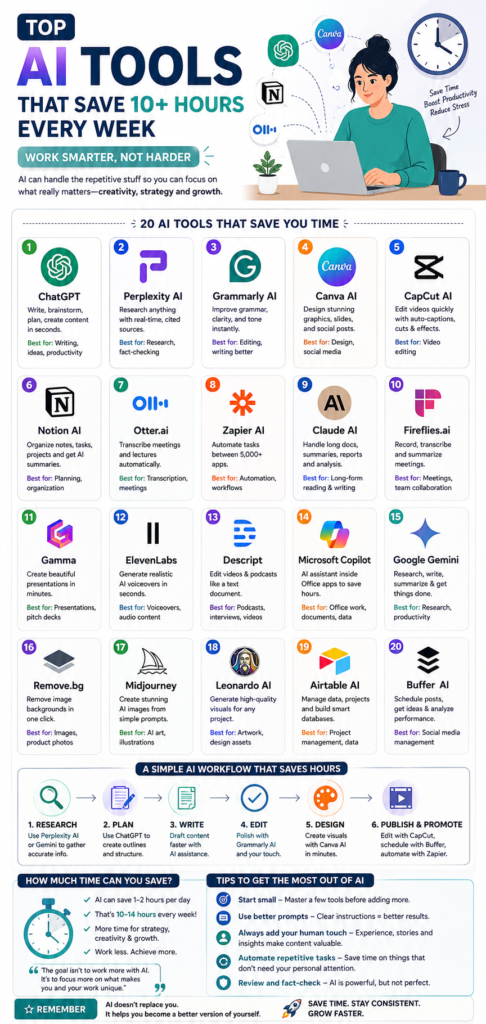
3. Grammarly AI – A Second Pair of Eyes
Best for: Editing and improving writing
No matter how carefully you write, it’s surprisingly easy to miss mistakes.
After reading the same paragraph ten times, your brain starts filling in missing words without you realizing it.
That’s exactly why I still use Grammarly.
It’s not just about fixing grammar anymore.
It also helps improve sentence clarity, tone, and readability.
Sometimes it’ll suggest a shorter sentence that sounds much more natural than what I originally wrote.
Those small improvements make articles easier to read.
Grammarly can help you
- Correct grammar mistakes
- Improve sentence flow
- Fix spelling errors
- Adjust writing tone
- Rewrite awkward sentences
Instead of spending another hour proofreading, you can focus on refining your ideas.
4. Canva AI – Design Without the Frustration
Best for: Graphics, presentations, social media, and marketing
I used to avoid graphic design whenever possible.
Not because I didn’t enjoy it—but because every simple design somehow turned into a two-hour project.
Finding images.
Choosing fonts.
Aligning elements.
Changing colors.
Repeating the whole process again because something still didn’t look right.
Canva completely changed that.
With its AI features and huge library of templates, creating professional-looking graphics has become much faster.
Now, when I finish writing a blog post, I can usually create:
- A featured image
- A Pinterest Pin
- An Instagram graphic
- A LinkedIn post image
…all within the same project.
That consistency saves both time and effort.
Canva AI is perfect for
- Bloggers
- Content creators
- Freelancers
- Small businesses
- Students
- Social media managers
If visual content is part of your work, Canva can easily save several hours every week.
5. Notion AI – Keep Everything Organized
Best for: Notes, planning, and project management
Have you ever written an idea on your phone…
Saved another in Google Docs…
Added tasks to a notebook…
And then spent twenty minutes trying to remember where everything was?
I’ve definitely done that.
Notion helped me bring everything into one place.
Adding AI made it even more useful.
Instead of manually organizing notes or writing summaries, Notion AI can do much of that work automatically.
I especially like using it for content planning.
For example, if I have ten rough blog ideas, Notion AI can help organize them into a publishing schedule, suggest outlines, and even generate task lists for each article.
Useful features
- Meeting summaries
- Task management
- Brainstorming
- Content planning
- Project organization
- Writing assistance
For anyone managing multiple projects, staying organized often saves more time than writing faster.
6. Otter.ai – Never Take Meeting Notes Again
Best for: Meeting transcription and interviews
Taking notes during a meeting sounds simple…
Until you’re trying to listen, think, and type at the same time.
Something usually gets missed.
Otter.ai solves that problem by recording conversations and automatically creating searchable transcripts.
Instead of worrying about capturing every detail, you can focus on the discussion itself.
Afterward, you can review the transcript whenever you need it.
It’s especially useful for:
- Client meetings
- Online classes
- Interviews
- Team discussions
- Brainstorming sessions
For professionals who attend several meetings every week, this tool alone can save hours of manual note-taking.
If there’s one thing I’ve learned after trying dozens of AI tools, it’s this:
You don’t need more tools—you need the right workflow.
It’s tempting to sign up for every new AI platform that launches. I’ve done it myself. Before long, you have ten tabs open, five free accounts you barely use, and you’re actually less productive than before.
Now I keep my workflow simple. Each tool has a specific job, and together they save me hours every week.
Let’s look at some of the most valuable ones.
7. CapCut AI – Edit Videos in Half the Time
Best for: YouTube Shorts, Instagram Reels, TikTok, and marketing videos
Video editing used to be the part of content creation I dreaded most.
Even a 60-second video could take two or three hours to edit. I’d trim clips, add captions, adjust audio, choose transitions, and export multiple versions for different platforms.
Then I started using CapCut AI.
The difference was immediate.
Instead of manually adding subtitles or removing silent pauses, CapCut handled much of the repetitive work automatically.
Features that actually save time
- Automatic captions
- AI voice enhancement
- Silence removal
- Auto-cut editing
- Background removal
- One-click templates
- Smart transitions
Real-world example
Imagine you’ve just published a 2,000-word blog post.
Instead of creating a social media video from scratch, you can summarize the article into a short script, record yourself, and let CapCut generate captions and edit the video automatically.
That one feature can easily save an hour or more on every video.
8. Zapier AI – Let Your Apps Work Together
Best for: Automation
Here’s a question I ask myself whenever I do something more than three times:
“Can this be automated?”
More often than not, the answer is yes.
That’s where Zapier AI becomes incredibly useful.
It connects hundreds of apps and lets them communicate without you having to do anything manually.
Here’s a simple example
Someone downloads your free ebook.
Instead of manually:
- Sending a welcome email
- Adding them to your mailing list
- Updating a spreadsheet
- Creating a CRM contact
Zapier can do everything automatically.
Once it’s set up, it runs quietly in the background.
You almost forget it’s there.
Popular automations
- Gmail → Google Sheets
- WordPress → Mailchimp
- Shopify → Slack
- Google Forms → Notion
- Calendly → Zoom
- Stripe → Airtable
Even automating a handful of small tasks can save several hours every month.
9. Claude AI – Perfect for Long Documents
Best for: Reports, ebooks, PDFs, and long-form writing
Not every AI chatbot handles long documents well.
That’s one reason I keep Claude in my toolkit.
Whenever I need to read a lengthy report, summarize research, or organize hundreds of pages of notes, Claude usually performs remarkably well.
I also appreciate its writing style.
The responses often feel calm and thoughtful rather than rushed.
That makes reviewing long documents much less tiring.
Claude works especially well for
- Ebook writing
- Business reports
- Research papers
- PDF summaries
- Strategy documents
- Long-form articles
If you spend your day reading or writing detailed documents, Claude can save an incredible amount of time.
10. Fireflies.ai – Smarter Meeting Notes
Best for: Remote teams and online meetings
Most meetings have the same problem.
Everyone is trying to participate while also writing notes.
As a result, someone always misses an important detail.
Fireflies.ai takes care of that.
It records meetings, creates searchable transcripts, and even highlights action items.
Instead of asking,
“Can someone send me the meeting notes?”
They’re already waiting for you.
Great for
- Zoom meetings
- Google Meet
- Microsoft Teams
- Client calls
- Internal discussions
If your calendar is full of meetings every week, you’ll quickly notice the time savings.
11. Gamma – Build Presentations in Minutes
Best for: Business presentations and slide decks
I’ll admit it.
Designing presentations has never been my favorite job.
Finding layouts…
Adjusting fonts…
Moving images…
Making everything look consistent…
It always took much longer than expected.
Gamma removes most of that effort.
Describe your topic, and it creates a polished presentation that you can edit afterward.
Instead of spending an afternoon building slides, you spend your time improving the message.
That’s a much better use of your energy.
Perfect for
- Business proposals
- Client presentations
- School projects
- Workshops
- Webinars
- Pitch decks
12. ElevenLabs – AI Voiceovers That Sound Human
Best for: Voice generation
Recording voiceovers isn’t always practical.
Sometimes your environment is noisy.
Sometimes you’re traveling.
Sometimes you simply don’t feel like recording.
ElevenLabs generates remarkably natural voices that work well for:
- YouTube videos
- Audiobooks
- Online courses
- Product demos
- Podcasts
While I still prefer using my own voice whenever possible, it’s reassuring to have another option when time is limited.
13. Descript – Edit Videos Like a Word Document
Best for: Podcasts and talking-head videos
The first time I tried Descript, I genuinely wondered why every video editor didn’t work this way.
Instead of editing a timeline…
You edit text.
Delete a sentence from the transcript, and it disappears from the video.
It’s surprisingly intuitive.
For interview-based videos or podcasts, it dramatically speeds up editing.
Ideal for
- Podcast editing
- Interviews
- Tutorials
- Online courses
- Talking-head YouTube videos
Once you get used to editing through text, it’s difficult to go back.
14. Microsoft Copilot – Productivity Inside Microsoft Office
Best for: Office work
If your workday revolves around Word, Excel, Outlook, and PowerPoint, Copilot can remove a lot of repetitive work.
Instead of manually formatting reports or building presentations from scratch, you can ask Copilot to create a first draft.
You still review and improve everything—but the hardest part is already done.
Helpful features
- Excel formulas
- Word drafting
- Email writing
- PowerPoint creation
- Data summaries
For office professionals, those small time savings quickly add up.
A Simple AI Workflow That Saves Me Hours
People often ask,
“Which AI tools do you actually use together?”
Here’s a workflow that’s worked well for me:
Step 1 – Research
Use Perplexity AI to gather reliable information and understand the topic.
Step 2 – Writing
Move to ChatGPT to create an outline and write the first draft.
Step 3 – Editing
Run everything through Grammarly AI to improve clarity and catch mistakes.
Step 4 – Graphics
Open Canva AI to create:
- Blog featured image
- Pinterest Pin
- LinkedIn graphic
- Facebook post
Step 5 – Video
Turn the article into a short video using CapCut AI.
One piece of content becomes five.
That’s where AI really starts saving time.
Biggest Mistakes Beginners Make
When people first start using AI, I notice the same mistakes over and over.
Trying too many tools
You don’t need twenty AI apps.
Start with three or four and learn them well.
Copying AI output without editing
Readers connect with real experiences and opinions.
Always add your own examples, stories, and personality.
Expecting perfect results
AI creates a starting point—not the finished product.
Treat it like an assistant, not a replacement.
Ignoring automation
Many people focus only on AI writing.
In reality, automation tools like Zapier often save even more time over the long run.
By this point, you might be thinking:
“These tools sound useful, but will they actually save me 10 hours every week?”
The honest answer is—it depends on how you use them.
If you only ask ChatGPT a few questions every now and then, you probably won’t notice a huge difference.
But if you build a simple workflow where AI helps you research, write, design, edit, and automate repetitive tasks, the time savings become very real.
For me, the biggest improvement wasn’t writing faster. It was reducing all the little tasks that quietly stole time throughout the day.
Let’s look at a few more tools that deserve a place in your productivity toolkit.
15. Notion AI – Your Personal Workspace Assistant
Best for: Organizing ideas, planning projects, and managing content
One of the biggest productivity killers isn’t a lack of ideas—it’s losing track of them.
I used to keep blog ideas in Google Docs, client notes in another app, and my to-do list on sticky notes. Every morning started with five minutes of searching for where I’d written something down.
Notion changed that.
With AI built into the platform, it became much more than a note-taking app.
Now I use it to:
- Plan blog content
- Create editorial calendars
- Summarize meeting notes
- Organize client projects
- Generate task lists
- Brainstorm article ideas
Instead of switching between multiple apps, everything lives in one organized workspace.
Why it saves time
The less time you spend looking for information, the more time you have to actually use it.
16. Canva AI – More Than Just Graphic Design
Best for: Marketing visuals and social media
Most people think Canva is only for creating graphics.
That’s how I used it in the beginning too.
Then I realized it could handle almost my entire visual content workflow.
After finishing a blog article, I can create:
- A featured image
- Pinterest Pins
- LinkedIn graphics
- Facebook posts
- Instagram carousels
- Presentation slides
—all without leaving Canva.
Its AI features also help generate images, rewrite text, remove backgrounds, and resize designs for different platforms.
Instead of opening four different design tools, everything happens in one place.
That simplicity saves more time than most people expect.
17. Midjourney or Leonardo AI – Create Unique Images
Best for: Custom artwork and illustrations
Finding the right stock image isn’t always easy.
Sometimes you spend thirty minutes browsing image libraries only to settle for something that feels generic.
AI image generators solve that problem.
Need an illustration of a futuristic office?
A realistic business concept?
A custom YouTube thumbnail?
You can simply describe what you want.
While AI-generated images occasionally need a little tweaking, they’re often much closer to your vision than generic stock photos.
Perfect for
- Blog illustrations
- Book covers
- Pinterest graphics
- YouTube thumbnails
- Social media content
- Website banners
If you regularly create online content, custom visuals help your work stand out.
18. Remove.bg – A Small Tool That Saves Big Time
Best for: Removing image backgrounds
Some AI tools are exciting.
Others are simply practical.
Remove.bg falls into the second category.
If you’ve ever tried removing a background manually in Photoshop, you know how frustrating it can be.
With Remove.bg, the process usually takes just a few seconds.
I use tools like this when creating:
- Product images
- YouTube thumbnails
- Blog graphics
- Ecommerce listings
- Social media posts
It’s a simple tool—but one you’ll probably use more often than you expect.
19. Gamma – Create Presentations Without Starting From Scratch
Best for: Business presentations
We’ve all experienced presentation procrastination.
You know what you want to say.
You just don’t want to spend three hours adjusting fonts and aligning text boxes.
Gamma handles much of the design work automatically.
Describe your topic, and it builds a polished presentation that you can customize afterward.
It’s especially useful for:
- Client proposals
- Business reports
- Workshops
- Training sessions
- Online courses
Rather than staring at a blank slide, you’re improving an existing presentation.
That feels much less overwhelming.
20. Google Gemini – Research and Productivity
Best for: Google Workspace users
If most of your work happens inside Google Docs, Gmail, or Drive, Gemini is worth exploring.
One thing I appreciate is how naturally it fits into Google’s ecosystem.
Instead of copying information between multiple apps, you can often complete tasks where you’re already working.
I frequently use Gemini to:
- Summarize documents
- Brainstorm article ideas
- Draft emails
- Research topics
- Organize notes
Those small efficiencies save time throughout the week.
How Different Professionals Can Save Time With AI
Not everyone uses AI the same way.
The tools you need depend on the kind of work you do.
Bloggers
A simple blogging workflow might look like this:
- Perplexity AI → Research
- ChatGPT → First draft
- Grammarly → Editing
- Canva AI → Graphics
- CapCut AI → Video promotion
Instead of creating content for just one platform, you can repurpose it across several channels.
Freelancers
Freelancers often spend as much time running their business as they do serving clients.
AI can help by speeding up:
- Proposal writing
- Client emails
- Invoice reminders
- Meeting summaries
- Content creation
- Project planning
Saving just one hour a day means more time for billable work.
Students
AI can support learning without replacing it.
Students can use AI to:
- Summarize textbooks
- Explain difficult concepts
- Organize study notes
- Create flashcards
- Plan assignments
The goal isn’t to let AI do the learning.
It’s to spend less time organizing information and more time understanding it.
Small Business Owners
Running a business means wearing multiple hats.
Marketing.
Customer support.
Content creation.
Administration.
AI helps reduce that workload by automating repetitive tasks and generating first drafts much faster than starting from scratch.
My Biggest Productivity Lesson
If there’s one thing AI has taught me, it’s this:
Being busy isn’t the same as being productive.
For years, I believed that working longer hours meant I was making progress.
Looking back, much of that time was spent doing repetitive tasks that could have been simplified.
Now I ask myself a simple question before starting any task:
“Is this something only I can do?”
If the answer is no, AI can usually help.
That doesn’t make the work less valuable.
It simply gives me more time to focus on strategy, creativity, and solving real problems.
Tips to Save Even More Time
Here are a few habits that have made the biggest difference in my workflow:
Create reusable prompts
Instead of writing the same instructions repeatedly, save your best prompts in a document.
Over time, you’ll build a personal prompt library that speeds up every project.
Batch similar tasks
Research several articles at once.
Design multiple social media graphics together.
Record several videos in one session.
AI works best when combined with efficient workflows.
Keep your AI toolkit small
You don’t need twenty different platforms.
Choose five reliable tools and learn them well.
You’ll be far more productive than someone constantly testing new software.
Review everything before publishing
AI is incredibly helpful—but it’s not perfect.
Always add your own examples, opinions, and experiences.
Those personal touches are what make your content memorable.
Top AI Tools That Save 10+ Hours Every Week (Final Part)
By now, you’ve seen how AI can help with writing, research, design, meetings, automation, and content creation.
But there’s one question I hear all the time:
“Do I need to use all these tools to become more productive?”
Not at all.
In fact, trying to use too many AI tools is one of the fastest ways to become overwhelmed.
The biggest productivity gains don’t come from having the largest collection of AI apps. They come from building a simple system that fits the way you already work.
That’s exactly what I’ve found over the past year. Instead of constantly chasing every new AI tool, I’ve focused on using a handful of reliable ones consistently. The result? Less time switching between apps and more time creating meaningful work.
Frequently Asked Questions
Which AI tool saves the most time?
If I had to choose just one, it would be ChatGPT.
It’s incredibly flexible and can help with:
- Brainstorming ideas
- Writing first drafts
- Answering questions
- Creating outlines
- Coding
- Learning new topics
- Drafting emails
That said, the “best” AI tool depends on your work.
A designer might get more value from Canva AI, while a business owner may benefit most from Zapier AI.
Can free AI tools really replace paid software?
For many people, yes.
If you’re a student, blogger, freelancer, or small business owner, free plans often provide enough features to handle everyday tasks.
Eventually, as your business grows, premium features may become worthwhile.
But there’s no need to spend money before you’ve fully explored the free options.
Will AI replace writers, designers, or marketers?
I don’t believe so.
AI is excellent at speeding up repetitive work.
It can organize information.
Generate ideas.
Suggest improvements.
But it doesn’t understand your personal experiences, your audience, or your unique perspective.
Readers connect with authenticity.
A story about a challenge you overcame or a lesson you learned carries far more value than perfectly generated text.
The creators who combine AI with their own expertise will continue to stand out.
Is AI-generated content good for SEO?
It can be—but only when it’s edited carefully.
Google doesn’t reward content simply because it was written by a human or generated by AI.
It rewards content that is:
- Helpful
- Accurate
- Original
- Trustworthy
- Well-organized
That’s why I always recommend treating AI as your first draft, not your final draft.
Add your own examples.
Share your own experiences.
Fact-check important information.
Those extra steps make a huge difference.
How many AI tools should beginners use?
Start with three to five.
A simple toolkit could look like this:
- ChatGPT – Writing and brainstorming
- Perplexity AI – Research
- Grammarly AI – Editing
- Canva AI – Design
- CapCut AI – Video editing
Master these before exploring additional tools.
You’ll learn much faster—and you’ll avoid the temptation to constantly switch between platforms.
My Recommended AI Workflow
If someone asked me how to build an efficient AI-powered workflow from scratch, this is what I’d suggest.
Step 1 – Research
Use Perplexity AI or Google Gemini to gather accurate information and understand your topic.
Step 2 – Planning
Ask ChatGPT to organize your ideas into a logical outline.
A clear structure saves more time than most people realize.
Step 3 – Writing
Create the first draft with ChatGPT, then expand it using your own experiences, opinions, and examples.
That’s what transforms generic content into something readers actually remember.
Step 4 – Editing
Use Grammarly AI to improve grammar, readability, and sentence flow.
Then read everything yourself one final time.
No AI tool knows your audience better than you do.
Step 5 – Design
Create:
- Featured images
- Pinterest Pins
- LinkedIn graphics
- Presentation slides
using Canva AI.
Keeping all your visuals in one platform makes content creation much smoother.
Step 6 – Promotion
Turn your article into:
- A LinkedIn carousel
- A YouTube Short
- An Instagram Reel
- A Pinterest Pin
using tools like CapCut AI and Canva AI.
One piece of content can become content for multiple platforms with very little extra effort.
Common AI Mistakes to Avoid
I’ve made a few of these mistakes myself, so hopefully you can avoid them.
Trying Every New Tool
There’s always another AI platform launching.
You don’t need all of them.
Choose tools that solve real problems instead of following every trend.
Publishing Without Editing
AI-generated content should never be your final version.
Always ask:
- Does this sound like me?
- Is it accurate?
- Would I actually say this?
If not, rewrite it.
Forgetting About Human Creativity
The most memorable content usually includes:
- Personal stories
- Honest opinions
- Real experiences
- Practical lessons
Those are things AI can’t genuinely replace.
Ignoring Small Time Savings
Saving ten minutes here…
Twenty minutes there…
It doesn’t feel significant at first.
But over a month, those small improvements can easily add up to 40 or 50 extra productive hours.
That’s more than an entire workweek.
Final Thoughts
When I first started experimenting with AI, I assumed it would simply help me write faster.
I was wrong.
The biggest benefit wasn’t speed—it was having more mental space.
Instead of worrying about formatting documents, organizing notes, proofreading every sentence, or creating graphics from scratch, I could spend more time thinking about ideas, solving problems, and creating content that genuinely helps people.
That’s where AI delivers the most value.
It doesn’t replace your creativity.
It gives you more opportunities to use it.
If you’re just getting started, don’t try to transform your entire workflow overnight.
Pick one or two tools.
Use them consistently for a few weeks.
Once they become second nature, add another tool.
Small improvements made consistently are far more powerful than trying to automate everything at once.
The future of work isn’t about competing with AI.
It’s about learning how to work alongside it.
Quick Summary
Here are the AI tools I recommend most:
| Task | Recommended Tool |
|---|---|
| Writing | ChatGPT |
| Research | Perplexity AI |
| Editing | Grammarly AI |
| Graphic Design | Canva AI |
| Video Editing | CapCut AI |
| Long Documents | Claude AI |
| Automation | Zapier AI |
| Presentations | Gamma |
| Voiceovers | ElevenLabs |
| Meeting Notes | Otter.ai / Fireflies.ai |
.