How to Turn a Blog Post Into a Digital Product in 2026
Introduction
If you have been blogging for a while, you may be sitting on a digital product without realizing it. That tutorial a few readers keep asking questions about? That checklist people bookmark? Those are signals that your audience wants something more structured than a long article.
Learning how to turn a blog post into a digital product means taking research and expertise you have already published and reshaping it into a convenient, ready-to-use resource. You are not starting from scratch. You are packaging what you know in a form that saves your reader time.
This guide walks through the full process in 12 steps. To keep things concrete, we will follow one example throughout: a blog post called “How to Create a Digital Planner in Canva.” One honest note up front: nothing here guarantees sales. A product is a business experiment, and the steps below simply help you run that experiment smartly.
What Does It Mean to Turn a Blog Post Into a Digital Product?
This is content repurposing. You take an article that explains something and turn it into a resource that helps someone do something.
The key difference is the job each one does:
- Free blog post: explains the idea, builds trust, and attracts search traffic.
- Paid digital product: saves time and effort through structure, templates, worksheets, or done-for-you assets.
Readers rarely pay for information alone, since information is everywhere. They pay for convenience, organization, and results. Keep that in mind at every step.
Why Bloggers Should Repurpose Existing Content
There are several good reasons to build on posts you already have:
- You make better use of your research. The hours behind a post can keep working for you.
- You may open another revenue stream. Ads and affiliate links are not the only options.
- You serve readers who want ready-to-use resources. Some people would rather buy a template than build one.
- You can grow your email list. A free sample or lead magnet gives readers a reason to subscribe.
- You build a product library over time. Each product can support the next.
Sales are never guaranteed. Results depend on your topic, audience, product quality, and promotion. Treat your first product as a learning project.
Step 1: Choose the Right Blog Post
Not every article makes a good product. Look for posts that:
- Solve a specific problem.
- Attract readers who match your ideal customer.
- Contain actionable, step-by-step information.
- Get questions or comments asking for more help.
- Could be expanded with templates, examples, or tools.
Examples of suitable posts:
- “How to Create a Digital Planner in Canva” (a how-to people want to complete, not just read)
- “How to Plan a Month of Social Media Content” (could become a calendar bundle)
- “How to Build a Simple Budget in Google Sheets” (could become a tracker)
- “Beginner’s Guide to Writing Email Newsletters” (could become an email course)
A quick way to shortlist: open your analytics and note which posts bring steady search traffic, then check which ones readers comment on or email you about. For our example, we pick the Canva planner post because the reader’s real goal is not to read about planners. It is to have one.
Step 2: Choose a Digital Product Format
The right format depends on what your reader wants to accomplish. Here are the common options with a practical example for each:
- PDF ebook or mini-guide: “Digital Planner Design Basics,” a 25-page guide with screenshots.
- Workbook or checklist: a fillable planner launch checklist covering design, export, listing, and promotion.
- Canva template bundle: editable planner pages (monthly, weekly, daily, habit tracker) that buyers customize.
- Printable planner or worksheet pack: ready-to-print weekly pages and goal-setting sheets.
- Spreadsheet or budget tracker: a Google Sheets tracker for planning a product launch or tracking planner sales.
- Prompt bundle: a set of AI prompts for brainstorming planner themes, page layouts, and product descriptions.
- Email course or tutorial: a five-day course that teaches planner design by email.
- Resource library: a collection of fonts, color palettes, icons, and layouts organized in one place.
Our example choice: an editable Canva planner template bundle with a short instruction guide. Why? Readers of the original post already use Canva, they want to skip the layout work, and templates deliver value a blog post cannot.
Step 3: Identify What Readers Still Need
This is the step that separates a real product from a repackaged article. Ask: After reading my post, what is still hard for the reader?
For example, a post about planning social media content might become a 30-day content calendar with editable templates, caption prompts, and a tracking spreadsheet. The article teaches the strategy. The product removes the busywork.
For our planner example, readers who finish the post probably still struggle with:
- Designing consistent page layouts.
- Linking pages for tapping and navigation.
- Choosing fonts and colors that look cohesive.
- Knowing which pages people actually want.
- Exporting files that work in apps like GoodNotes.
So the product adds pre-built layouts, a linking walkthrough, two or three color palettes, and an export checklist.
How to avoid copy-and-paste: if your product contains the same text as your blog post in a PDF, there is little reason to buy it. Use the article as the foundation, then add at least three things the post does not offer, such as templates, worksheets, examples, or tools.
Step 4: Validate the Product Idea
Before you spend weeks building, check whether people want it. Low-cost ways to do that:
- Read your comments and emails. Note repeated questions.
- Check search suggestions. Type your topic into Google and Pinterest and see what autocomplete offers.
- Browse relevant communities. Look at what beginners ask in forums and groups (and follow each community’s rules about self-promotion).
- Study competitor products. See what similar products include, what buyers praise, and what they say is missing.
- Collect frequently asked questions. These often become product sections.
Then test interest cheaply. Create a free sample, such as one planner page template or a one-page checklist, and offer it in the blog post. If readers download it and respond, that is a useful signal. You can also email your list or ask followers a direct question: “Would a ready-made Canva planner template bundle help you?” Their answers are worth more than guesses.
Step 5: Create the Product
Here is a beginner-friendly workflow:
- Extract the most useful information from the blog post: key steps, tips, and examples.
- Organize it into a logical structure (start to finish, or by use case).
- Add worksheets, examples, templates, or checklists that go beyond the article.
- Edit and fact-check everything, including tool names, menu steps, and links.
- Design it in Canva or Google Docs.
- Test the files and check usability on different devices.
Sample transformation
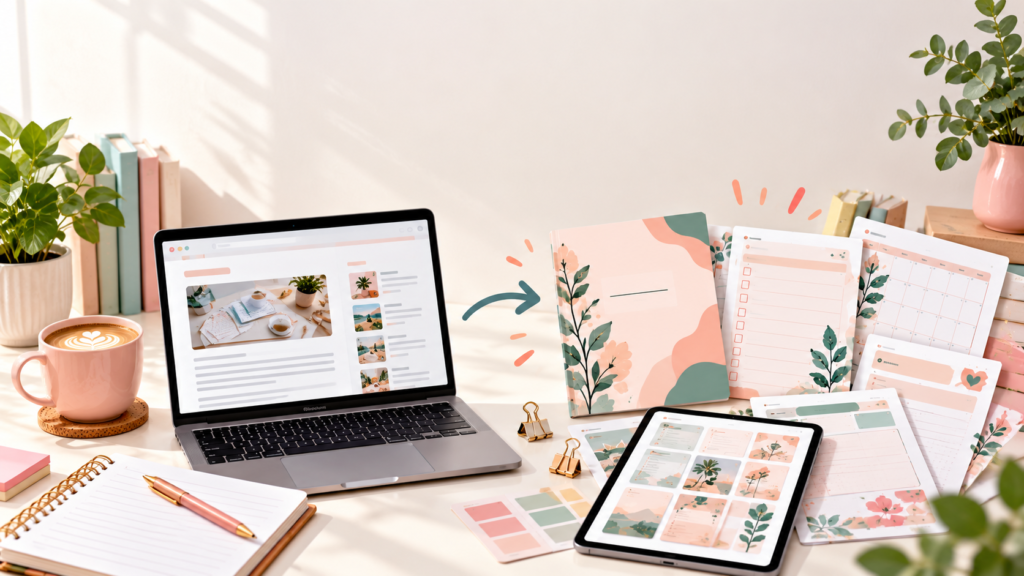
Free blog post: “How to Create a Digital Planner in Canva” (explains the process in about 1,500 words).
Paid product: “Canva Planner Starter Kit” containing:
- Eight editable page templates (monthly, weekly, daily, notes, goals, habit tracker, budget page, project page).
- A short guide on adding internal links between pages.
- Two color palettes with font pairing suggestions.
- A launch checklist for exporting and listing a planner.
- A simple Google Sheets tracker for product ideas and launch dates.
The post teaches the method. The kit hands over the materials.
Tools to use:
- Canva for templates, covers, and mockups.
- Google Docs for guides and instruction sheets (export to PDF).
- Google Sheets or Excel for trackers and calculators.
- ChatGPT for brainstorming and outlining (covered next).
Step 6: Use AI Tools Responsibly
AI can speed up the planning stage. ChatGPT can help you organize ideas, draft checklists, develop exercises, and improve clarity. Here is a prompt you can adapt:
Transform my blog post about [topic] into a practical digital product for [target audience]. Recommend the most useful product format, identify what additional value to include, and create a detailed outline. Do not simply reproduce the original article. Suggest original worksheets, templates, examples, and actionable resources.
Paste in your post, fill in the brackets, and treat the response as a starting point rather than a finished product.
You remain responsible for the final result. Before selling anything, review the output for:
- Accuracy: AI can state wrong steps or outdated features with confidence.
- Originality: make sure the product reflects your experience and voice.
- Usefulness: would a beginner actually be able to use it?
- Licensing compliance: check the terms for any fonts, graphics, templates, or AI-generated content you include, and confirm that the tools you use allow commercial use in the way you plan.
Step 7: Design and Package the Product
A polished product builds trust. Focus on these basics:
- A clean cover that states what the product is and who it is for.
- Consistent typography. Pick two fonts at most and use them consistently.
- Readable layouts with enough white space and strong contrast.
- Clear instructions so buyers know what to do first.
- Organized files with sensible names and folders.
For PDFs, export at a quality suited to the use. Standard quality works for on-screen reading, while print-ready files should use a print-oriented setting. For editable templates, a PDF with a link to the Canva template is a common approach, so check what your chosen platform allows. Include a one-page “Start Here” guide that explains how to open, edit, and save the files.
Create preview images (a cover, a few page mockups, and a “what’s included” graphic) because they help buyers decide.
Before publishing, test the download like a customer: buy or claim your own product, open it on a phone and computer, check that links work, and confirm the template opens correctly.
Step 8: Choose Where to Sell
Each platform suits a different situation:
- Gumroad: good for downloadable products and simple storefronts. It is a straightforward starting point for PDFs, templates, and bundles.
- Etsy: useful for suitable digital downloads and marketplace discovery, where shoppers already search for printables and templates. Expect competition.
- Amazon KDP: best for eligible ebooks and books formatted to its publishing requirements. It is not a fit for template bundles or editable files.
- Your own website: gives you more control over branding and customer relationships, but you handle traffic, checkout, and delivery.
Fees, eligibility, product rules, and licensing terms vary by platform and change over time. Read the current seller policies and fee pages before you list.
Our example: the Canva planner kit could start on Gumroad (simple delivery) and later be tested on Etsy for marketplace traffic. A separate beginner guide could be formatted for KDP if it meets their requirements.
Step 9: Set a Reasonable Price
Consider these factors:
- Depth and usefulness of the product.
- Originality and how much time it saves.
- Your target audience’s budget.
- Competitor pricing for similar products.
- Bonuses included.
Illustrative examples only (not market prices or earnings guarantees):
- Simple checklist: roughly $3 to $7
- Mini-guide: roughly $7 to $15
- Template bundle: roughly $12 to $30
- Workbook with templates: roughly $15 to $35
Check similar products on your chosen platform and price within a range that fits your quality. You can adjust later. Starting slightly lower for early buyers, then raising the price as you add reviews and improvements, is one option.
Step 10: Create a Product Listing That Converts
A strong listing is clear, honest, and focused on the buyer’s outcome.
Product title: include what it is and who it helps. Example: “Editable Canva Digital Planner Template Bundle for Beginners.”
Example description structure:
- Opening hook: who it is for and the problem it solves.
- What’s included: a bulleted list of files and pages.
- Key benefits: time saved, easy editing, consistent design.
- How it works: three simple steps (download, open in Canva, customize).
- What you need: a free Canva account, for example.
- FAQ: file types, usage rights, device compatibility, refunds per platform policy.
- Call to action: a clear button or sentence inviting the next step.
Add preview images, state your license terms clearly (can buyers resell the templates? use them commercially?), and avoid promising results you cannot control.
Step 11: Promote the Product Using the Original Blog Post
Your original post is your best marketing asset because it already attracts the right readers. Add promotion without making the post less helpful:
- Contextual links: place a mention where it makes sense, such as after the layout section: “If you’d rather skip the design work, the starter kit includes ready-made pages.”
- A product preview or sample: offer a free page template in exchange for an email address.
- Pinterest pins: create pins that link to the post or product page.
- Email newsletter: announce the product to subscribers and share how you built it.
- Related posts and internal links: link from other relevant articles.
- Social media posts: share behind-the-scenes clips and finished page previews.
The free post should still fully teach the process. The product simply saves time for readers who want a shortcut.
Step 12: Measure Results and Improve
Track the numbers that tell you what is working:
- Clicks from the blog post to the product page.
- Product-page visits.
- Conversion rate (purchases divided by visits).
- Customer questions and support emails.
- Feedback and reviews.
If people visit but do not buy, revise the listing: improve the previews, clarify the description, or adjust the price. If buyers keep asking the same question, add the answer to the product or the FAQ. If few people click, move or reword the call to action. Small improvements add up, and each version teaches you something for the next product.
Frequently Asked Questions
1. Can I sell the same content that is already free on my blog? Yes, but the product should add clear value, such as structure, templates, worksheets, or time savings. Pasting the article into a PDF is rarely enough.
2. How long does it take to create a first product? It varies widely. A simple checklist may take a few hours, while a template bundle or workbook can take days or weeks.
3. Do I need design skills? No. Canva and Google Docs offer beginner-friendly tools. Consistent fonts, colors, and spacing matter more than advanced design.
4. Can I use ChatGPT to create my product? You can use it for brainstorming, outlines, and drafts, but you must review for accuracy, originality, and licensing before selling.
5. Which platform is best for beginners? Gumroad is often simple to start with, while Etsy offers marketplace discovery. The best choice depends on your product and audience, so check current rules and fees.
6. How much money can I make? There is no reliable guarantee. Results depend on your audience, product quality, pricing, and promotion.
7. Do I need permission to use Canva elements in a product? Canva’s licensing rules determine what you may include and sell, and some elements have restrictions. Review the current Canva license terms before using it for commercial products.
Conclusion
Knowing how to turn a blog post into a digital product comes down to a simple process: choose a post readers value, pick a format that solves their next problem, add real value beyond the article, validate the idea, build and test it, choose a platform, price it sensibly, and promote it from the post that attracted readers in the first place.
Start small. Pick one article, make one useful product, and learn from the results. Even if you are not ready to sell today, going through these steps will show you what your readers truly need.